Machines
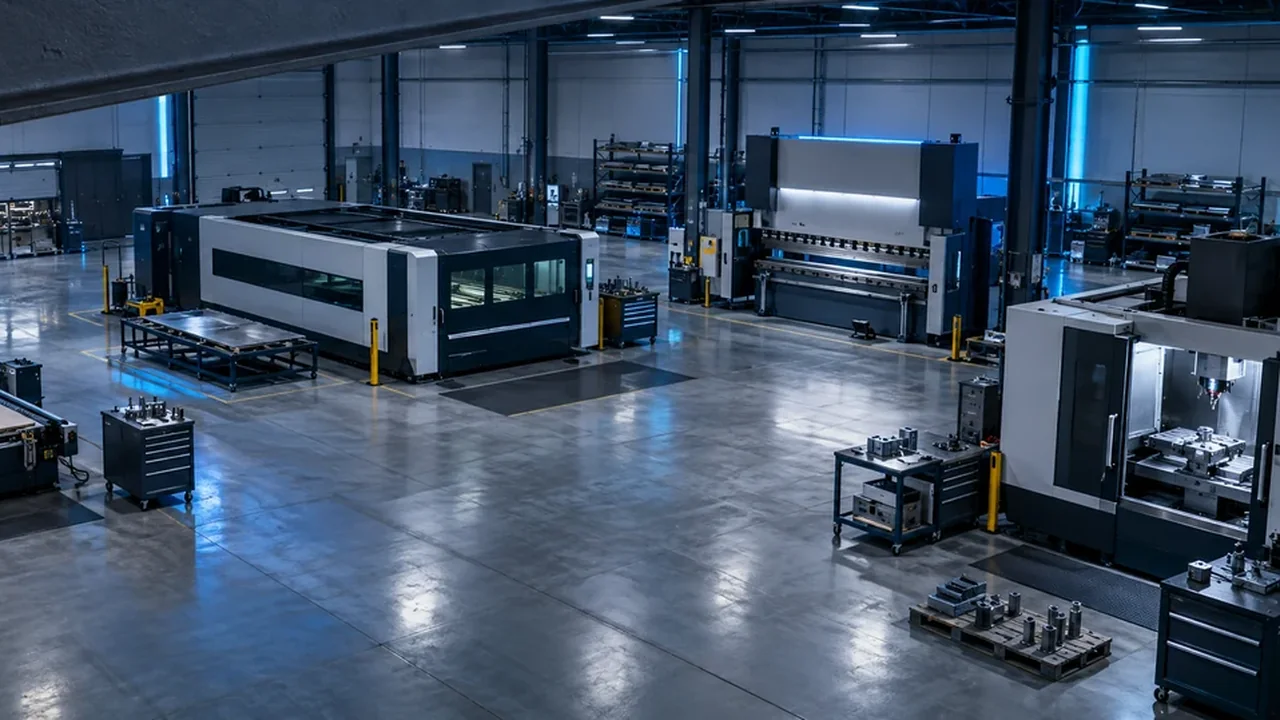
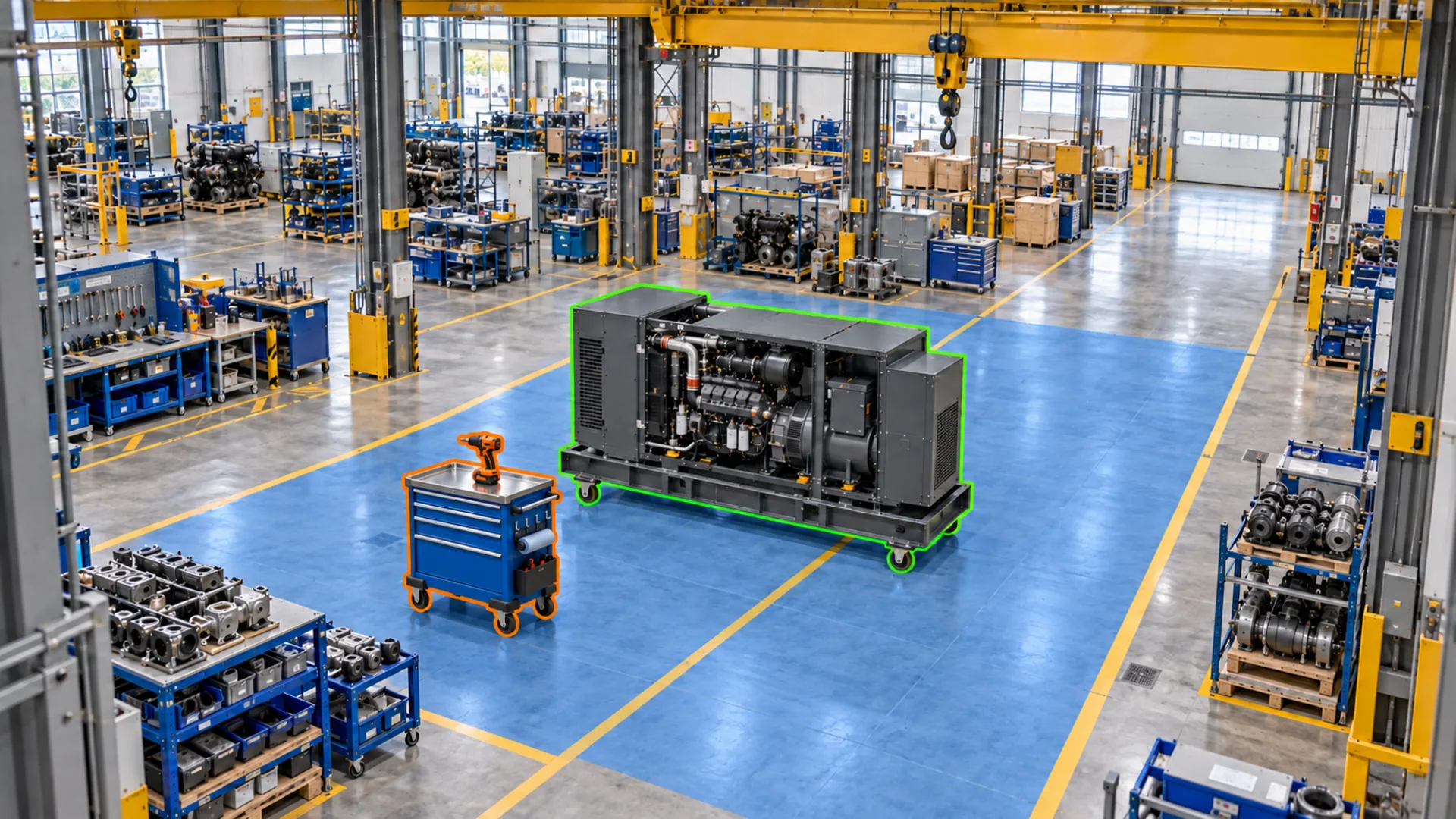
Automatically save status changes to each machine’s record.
- On and Off
- In Use
- Under Repair
- Your custom states
Vision AI
Connect your cameras and teach Vision AI what to track. See machine status, production progress, tools and work-area activity in Offsight.
The setup, step by step
Follow five steps in the Offsight console or mobile app. Click through the screens or play the tour.
Step 1 · Internet of Things
Connect cameras · screen 1 of 3
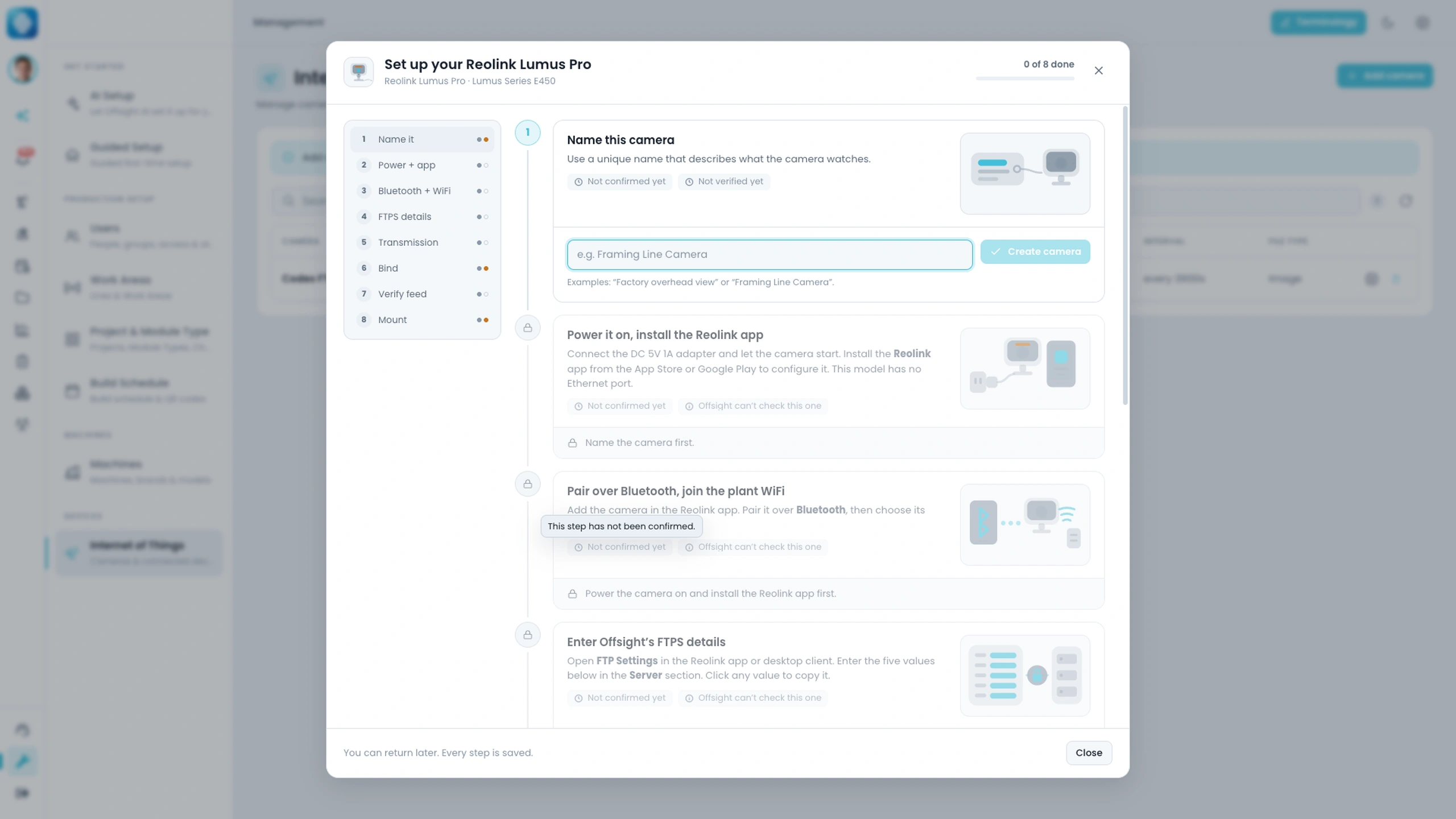
Set up a camera in the Offsight console.
Select Add Device and choose your camera. Offsight guides you through setup.
Turn on the camera, pair it with your phone and connect to Wi-Fi. Add Offsight’s upload details in the Reolink app. Photos upload automatically.
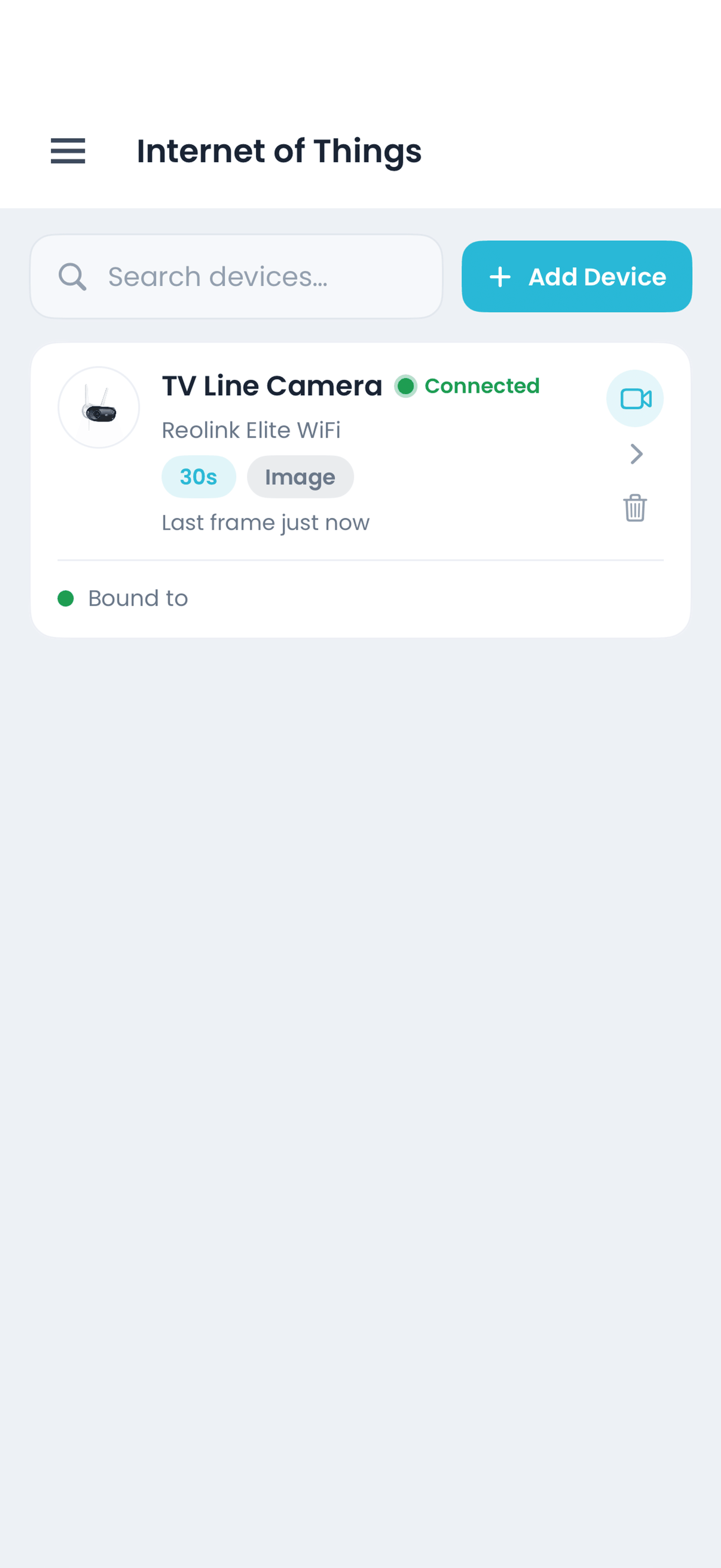
View a connected camera on iPhone. It sends a photo every 30 seconds.
Minutes
To connect a camera, with your setup progress saved
3 frames
Label per camera to train a work area
12 + 12
Label 12 On and 12 Off photos to train a machine
3 apps
Set up cameras and view updates on console, iOS and Android
What it tracks
One camera can track them all and send updates to Offsight.
Automatically save status changes to each machine’s record.
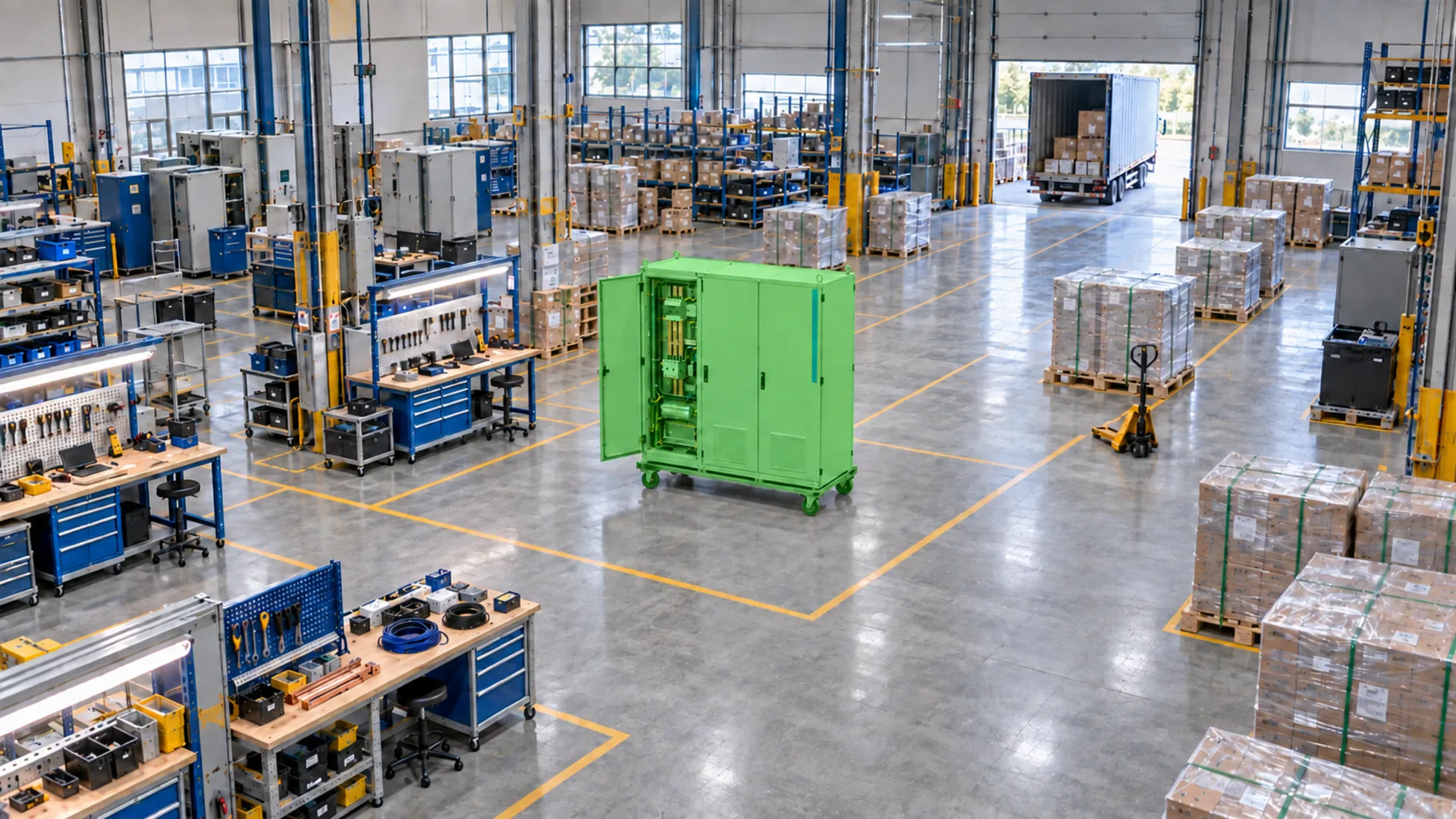
See where each product is and track progress without scanning.
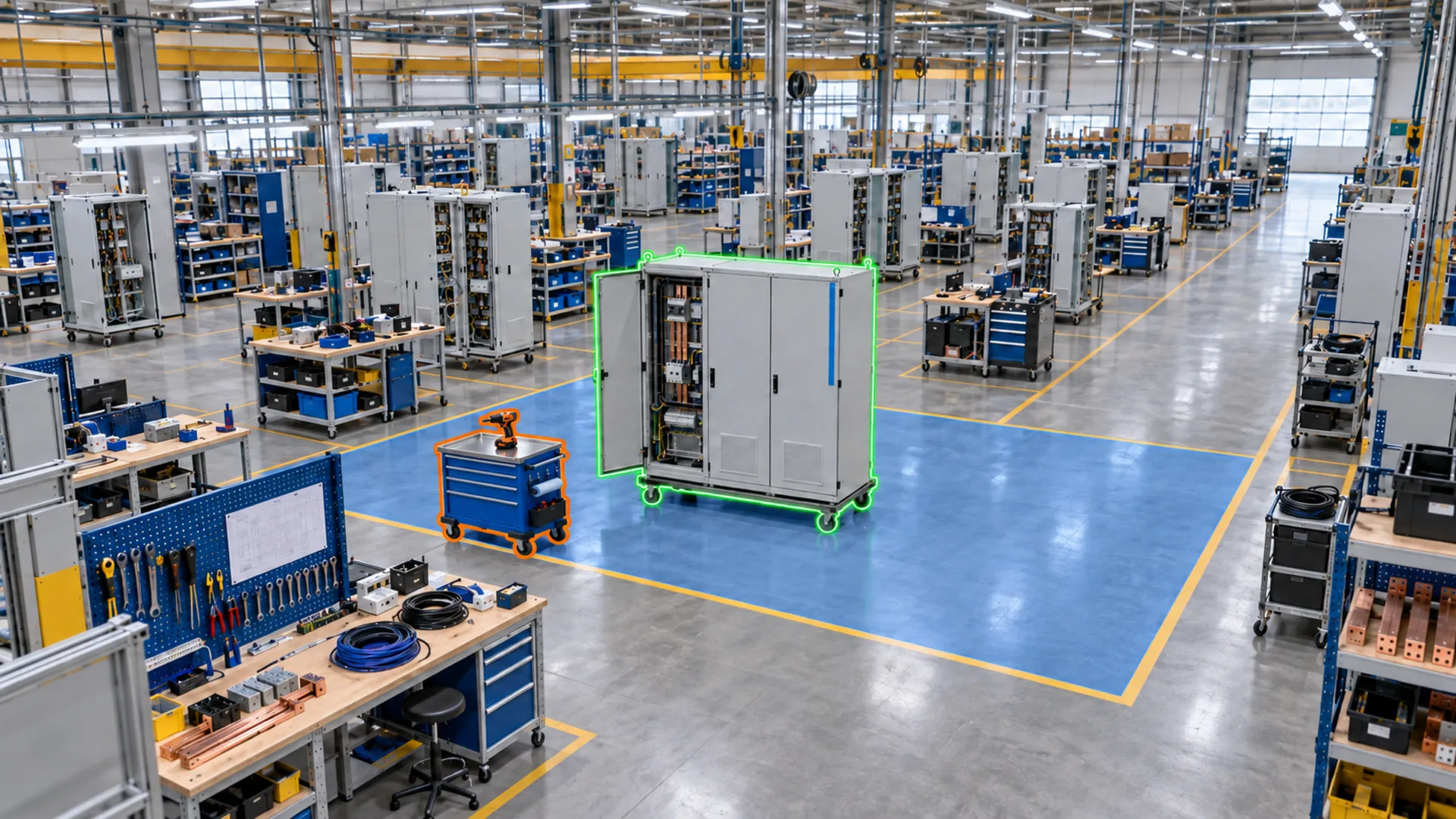
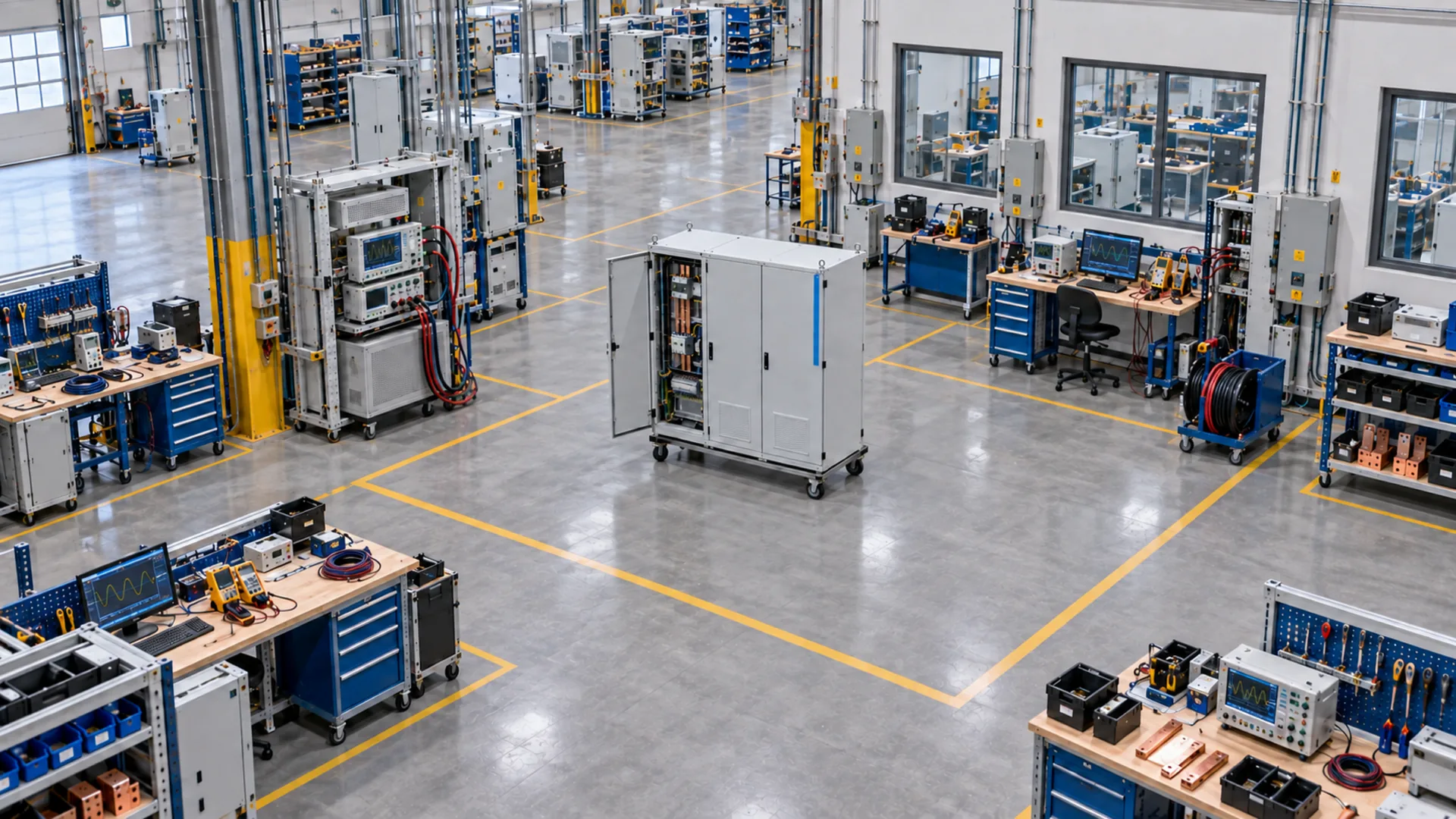
Mark a work area once. Vision AI tracks activity in each photo.
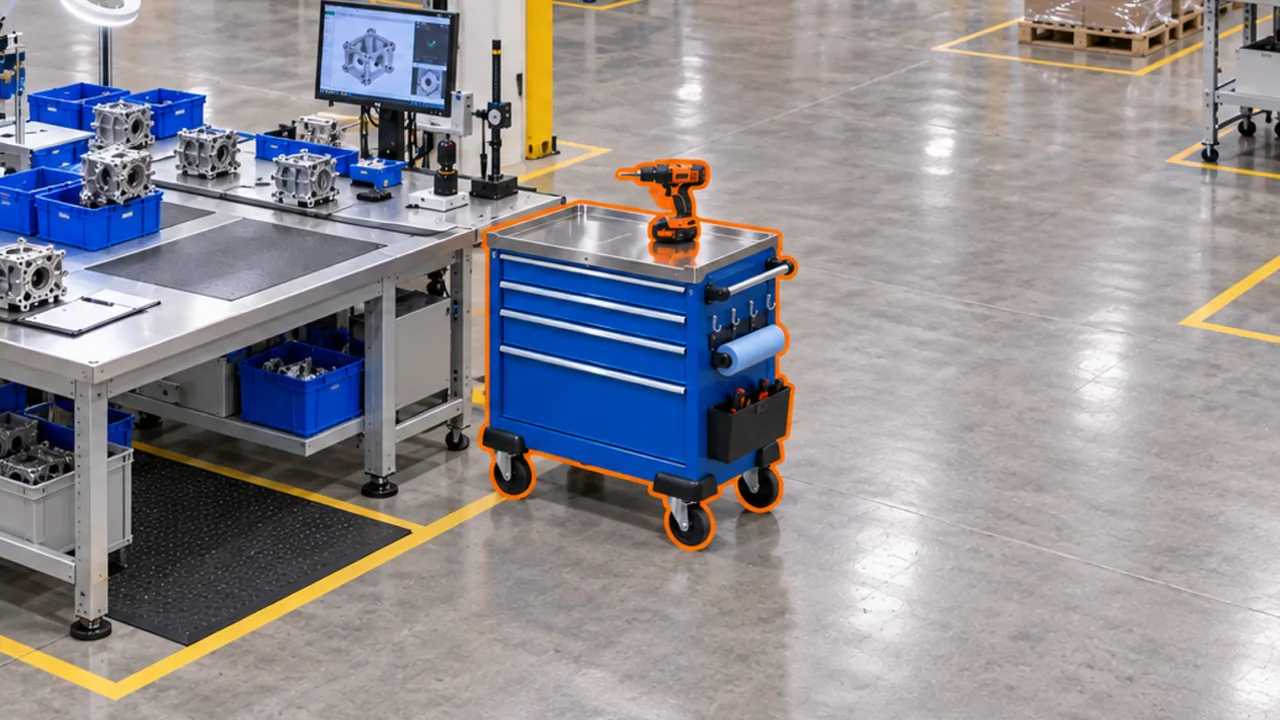
Find carts, welders, grinders and other equipment in each work area.
See what Vision AI detects
Drag to compare the original photo on the left with the product Vision AI identifies on the right.
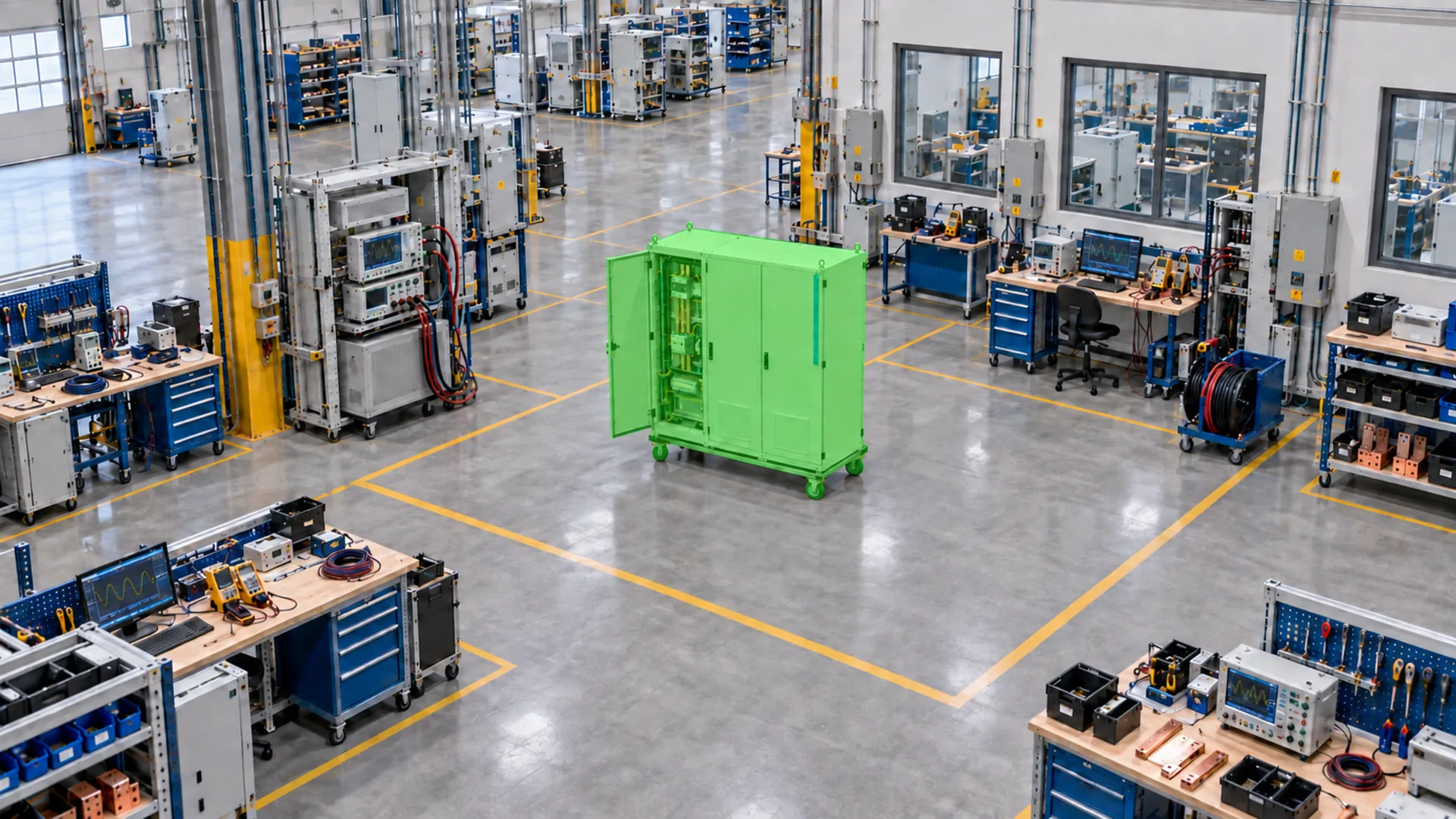
Machine states
Production progress and equipment
Camera photos show when a product or cart was in each work area.
Three cameras track the product through three work areas.
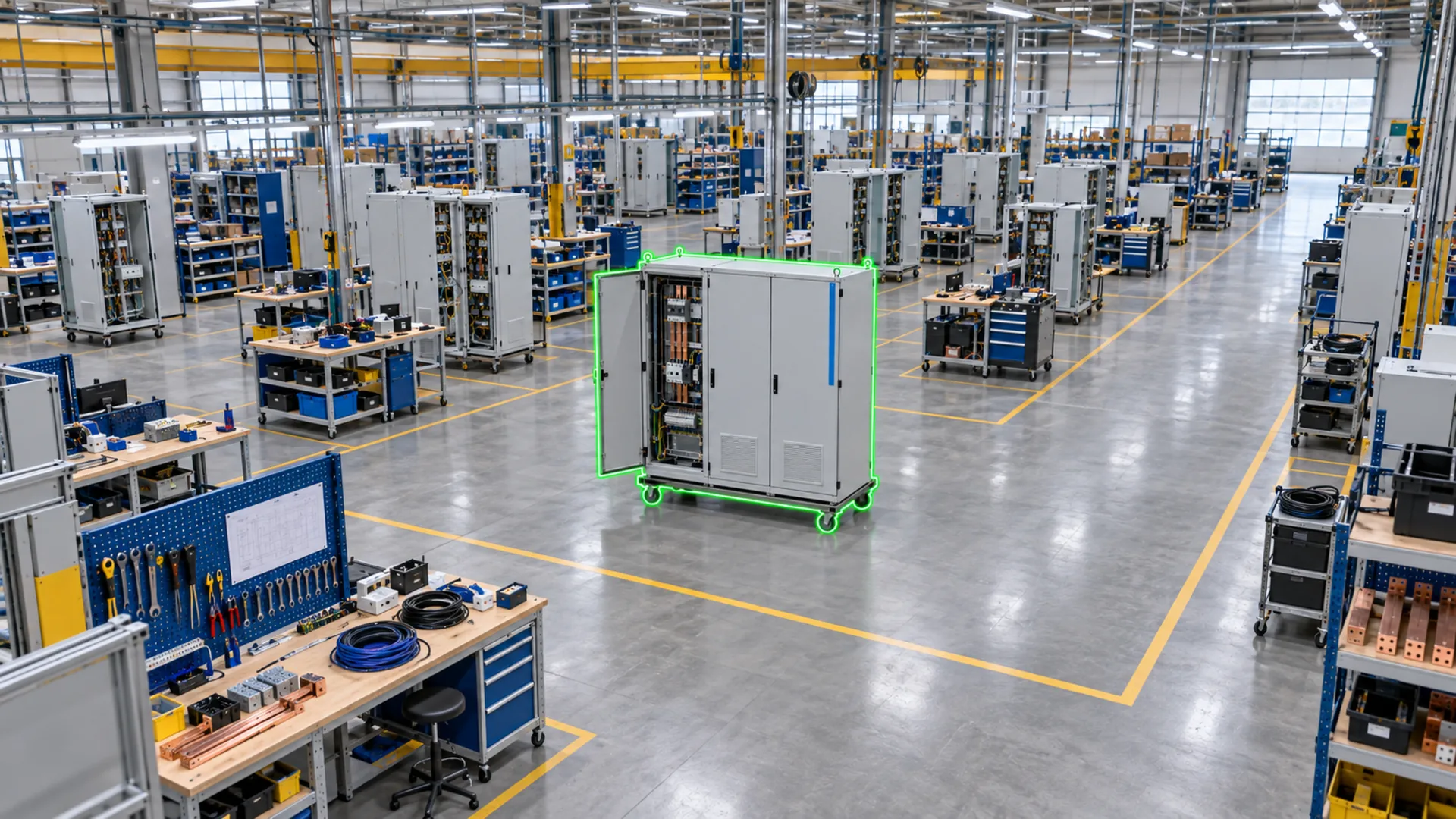
Wiring Assembly7:42 AM
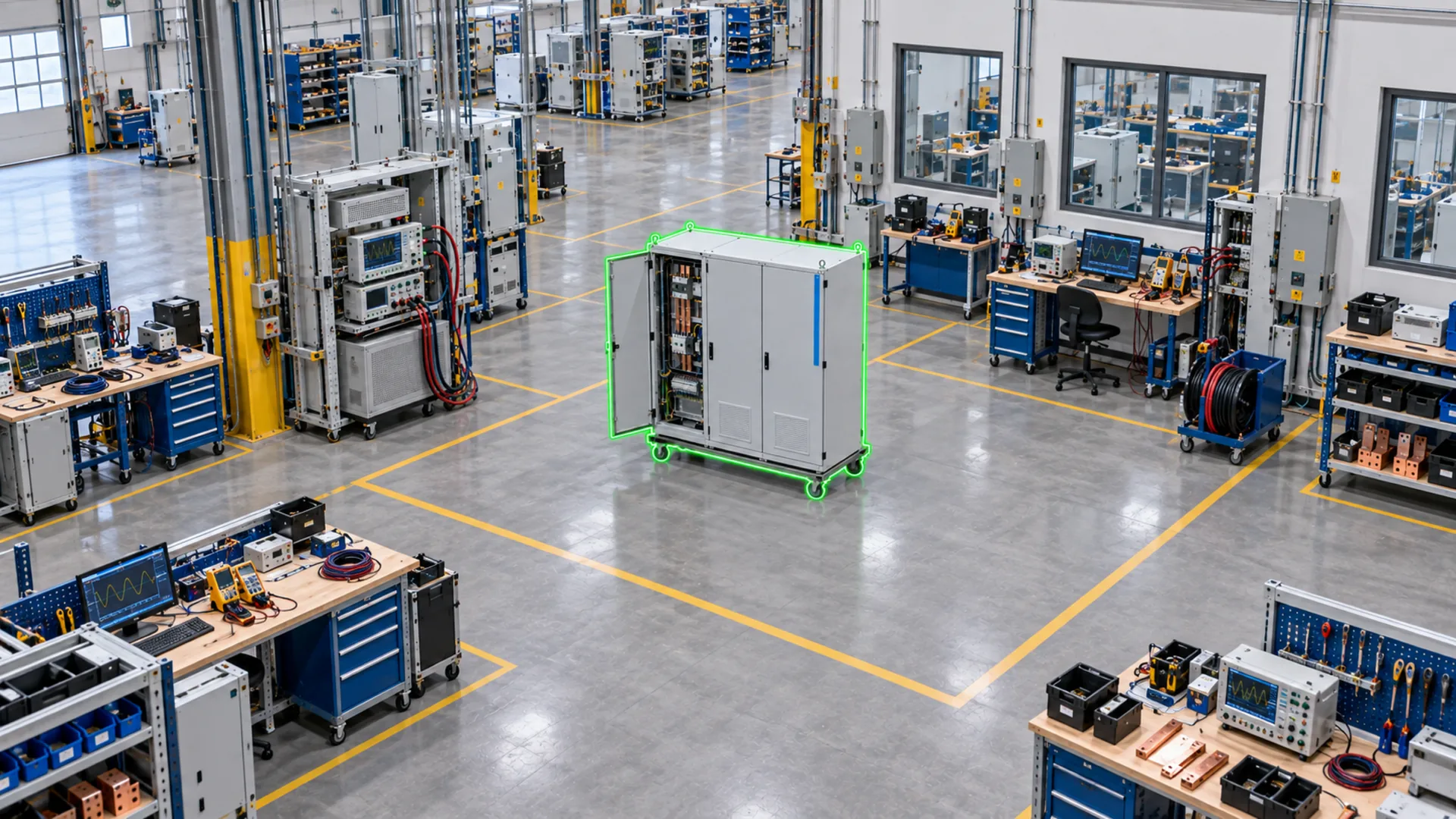
Functional Testing11:18 AM
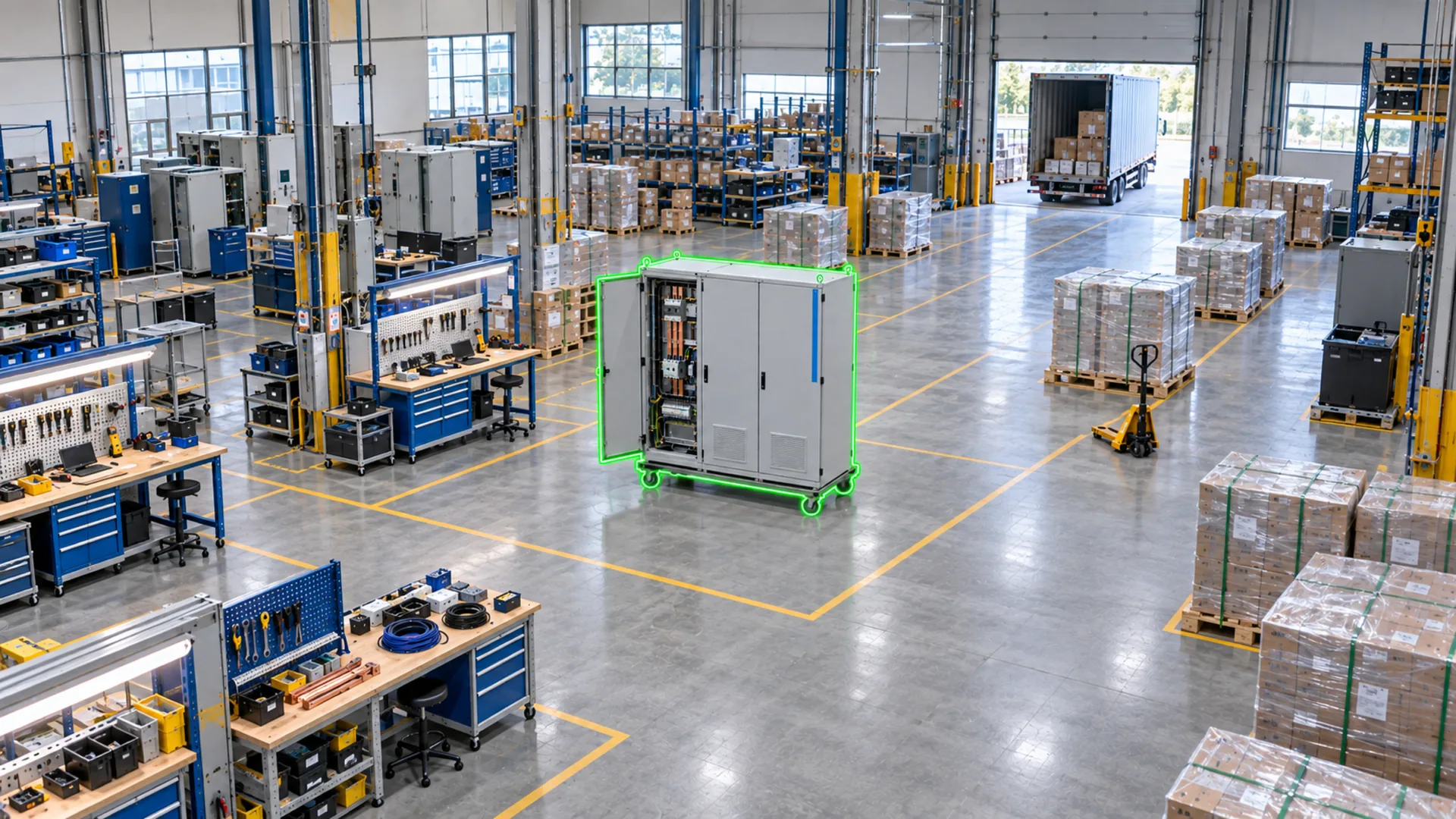
Final Quality2:36 PM
See the shared cart’s work area without searching the building.
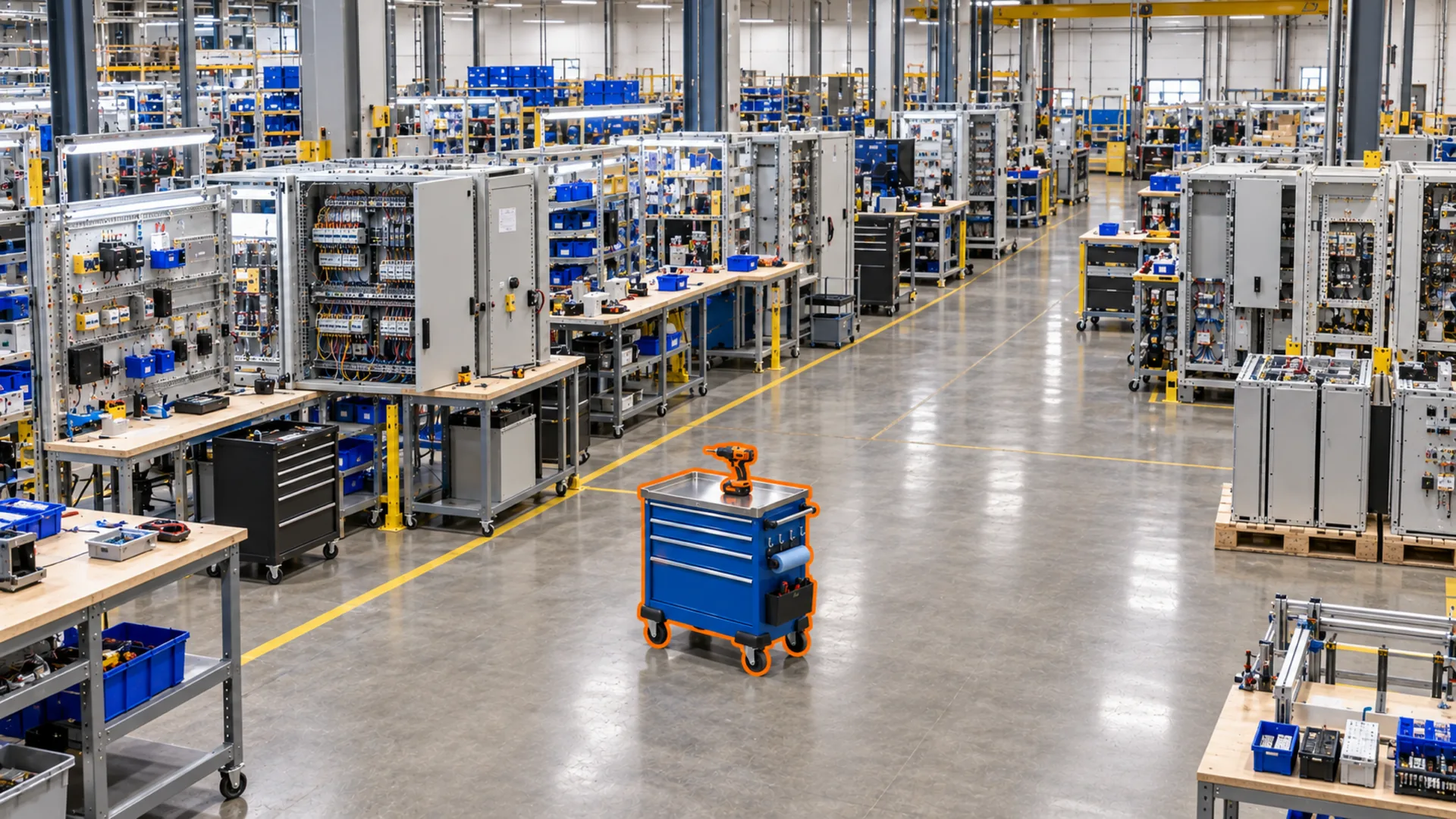
Electrical Assembly8:05 AM
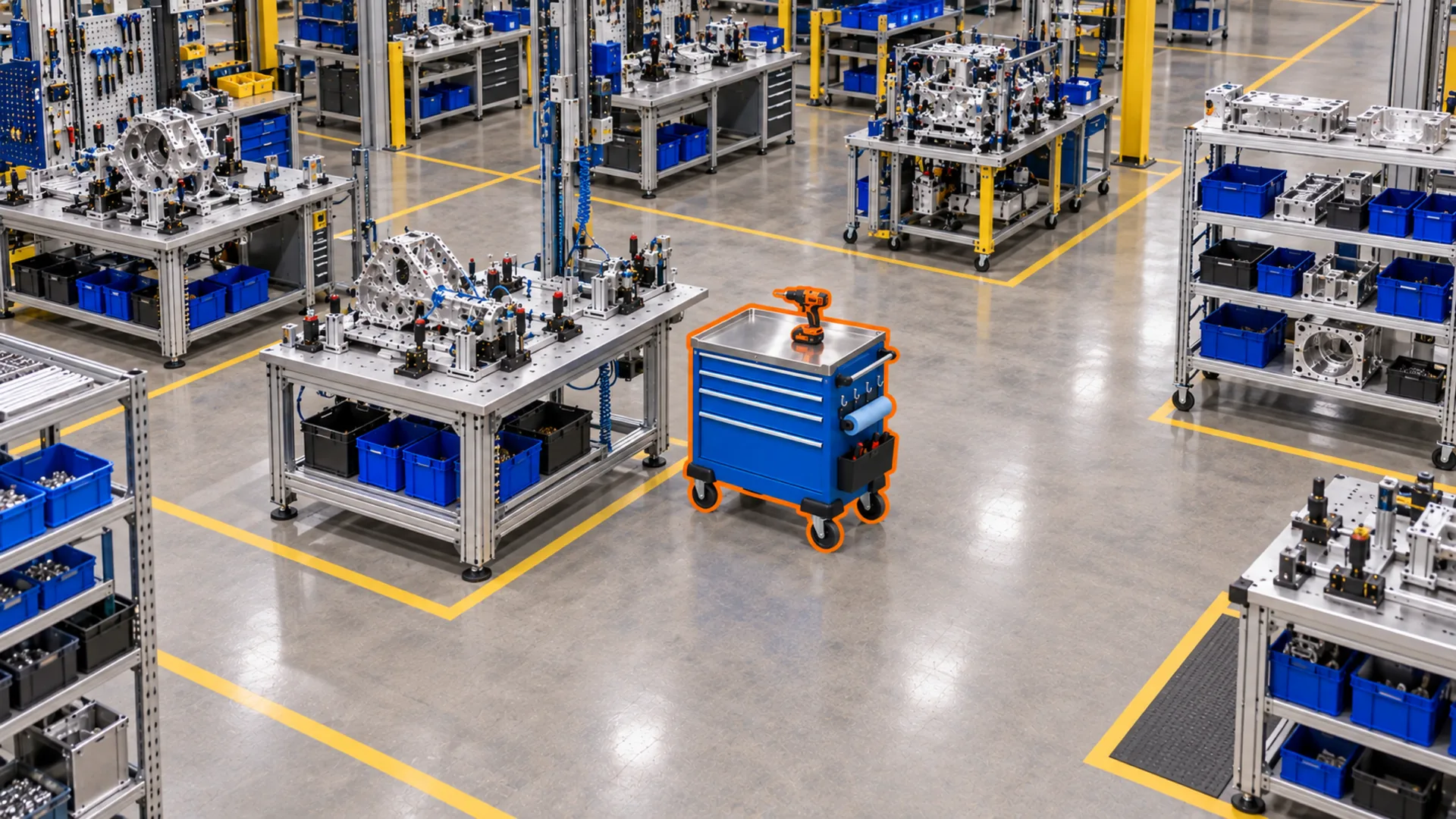
Mechanical Assembly10:52 AM
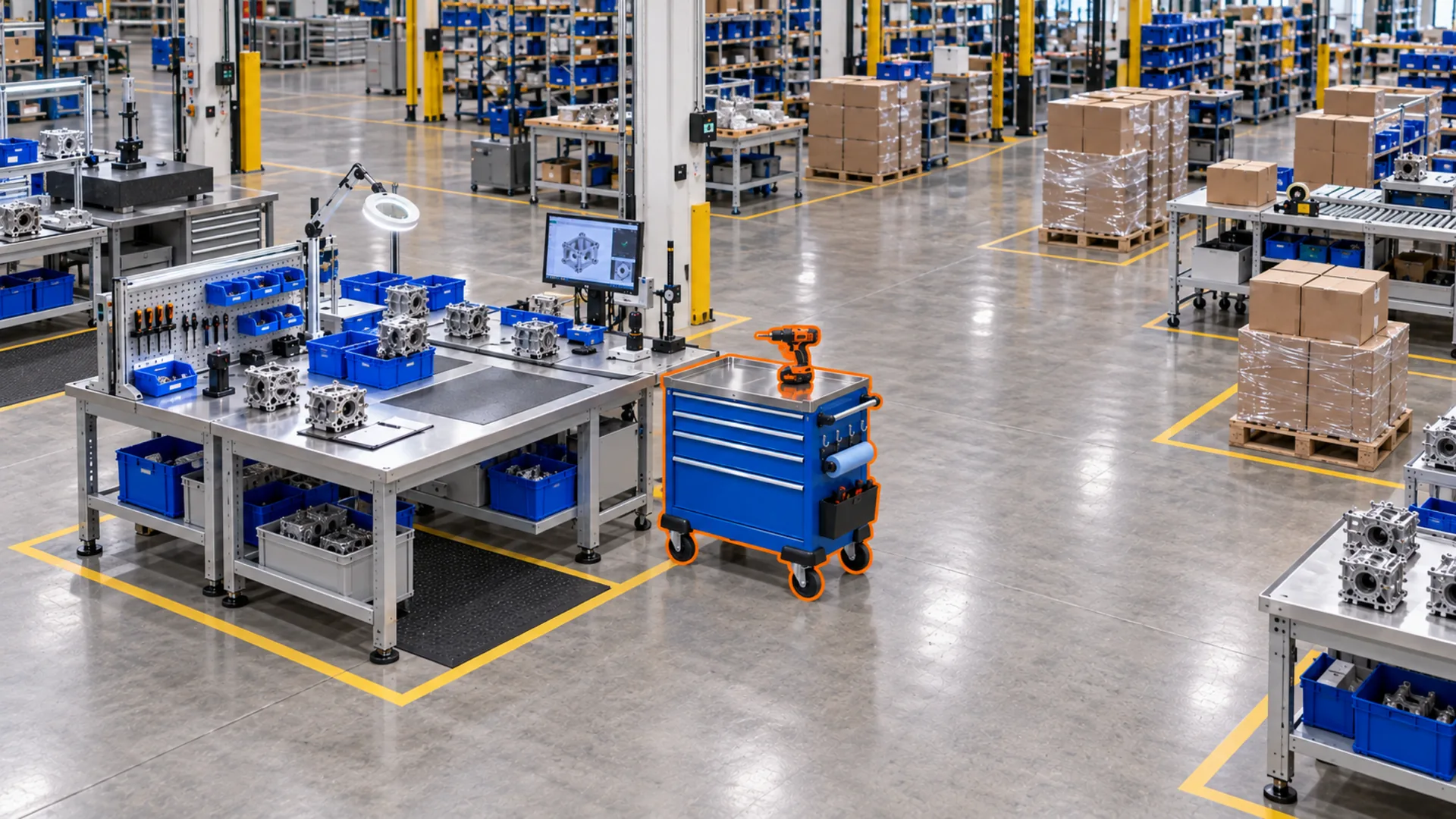
Final Inspection3:14 PM
Instantly in Offsight
Vision AI sends updates directly to Offsight, where you manage production, quality, materials and labor.
Notify the right person when a machine stops, a product stalls or a work area becomes idle.
Use live updates to adjust work, move people and send technicians where they are needed.
Camera data tracks uptime, time in each work area and output automatically.
Deployment
No on-site servers or AI hardware to buy or maintain.
Mount a supported Reolink camera in minutes. A dual-lens model provides a 180° view of a bay.
Cameras securely upload photos to Offsight using encrypted FTPS. Offsight trains and runs the AI.
Train Vision AI with photos of your floor and your team’s names for machines, products and work areas.
Set up cameras, label photos and review results on your computer, iPhone or Android device.
Where to buy?
Choose one of the two supported Reolink cameras. Buy it from Reolink, Amazon or Walmart, then connect it in Offsight’s Internet of Things section.



Questions
Setup takes minutes. Offsight guides you through connecting the camera to Wi-Fi, adding upload details, linking it to your account and checking the first photo. Your progress is saved at every step.
No. Label three photos per camera for a work area, or 12 On and 12 Off photos for a machine. Select Start training. Offsight trains and deploys the model for you.
No. Cameras send photos throughout the shift. This uses less network capacity and gives you timestamped images to review.
Vision AI recognizes machine states, products, tools, equipment and work-area activity. You can also define custom machine states.
Set up cameras, view photos, label images, train models and review results in the Offsight console or iOS and Android apps.
No. You only need cameras on site. Offsight trains and runs the AI, then sends results to your account.
Factory scenes and camera photos on this page are illustrations. The app screens are from the Offsight console and iPhone app.
Show us your floor plan, a camera view or a machine you want to track. We’ll walk you through setup, camera updates and AI training.